


Learn why iMessage may be blocking texts to your child's watch, and how to fix it in minutes.
What's happening: When an iPhone sends a message, Apple automatically routes it through iMessage (blue bubble) if it detects the recipient may have an Apple device. Since the TickTalk watch is not an iPhone, it cannot receive iMessages, only standard SMS (green bubble) texts will come through.
This is a common issue reported by iPhone users whose TickTalk watch can send messages but doesn't receive them. The good news: there are a few simple ways to resolve it.
Method 1: Resend a Single Message as SMS (Recommended)
This method affects only one message and does not change any settings on your iPhone.
- Send the message as usual from your iPhone.
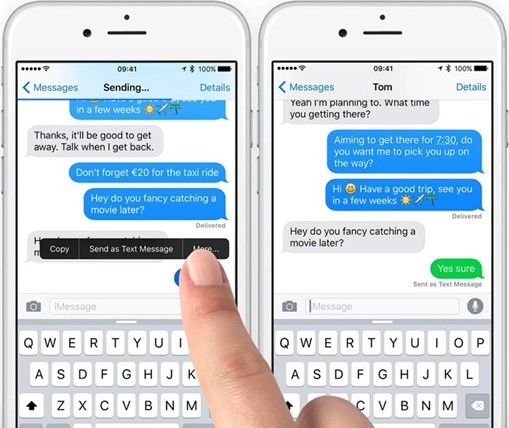
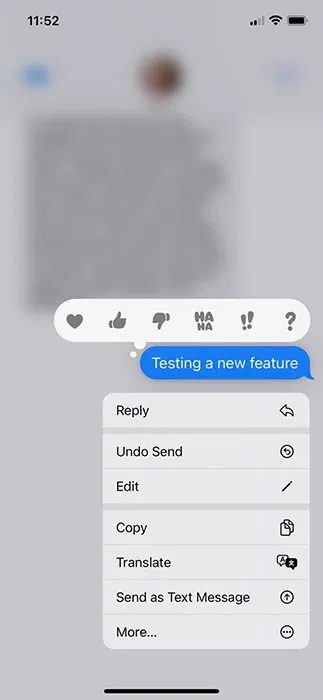
- If the message appears as a blue bubble (iMessage), press and hold on it.
- Tap "Send as Text Message" from the menu that appears.
- The message will resend as a green SMS, which the TickTalk watch can receive.
Method 2: Temporarily Turn Off iMessage
This turns off iMessage for all conversations while it is disabled. You can turn it back on after sending your message.
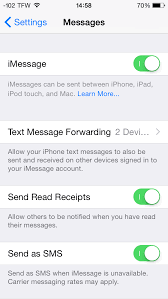
- Open Settings on your iPhone.
- Tap Messages.
- Toggle iMessage to the OFF position.
- Send your message to the watch — it will now send as a green SMS.
- You may turn iMessage back ON afterward if you wish.
Method 3: Permanently Deregister the Watch Number from iMessage (Long-Term Fix)
This is the most thorough solution, especially if the watch's phone number was previously associated with an iPhone.
Because TickTalk phone numbers are drawn from a recycled number pool, a watch's number may have previously been used on an iPhone. If that's the case, Apple's systems may continue to treat it as an iMessage-enabled number — causing messages from iPhones to be routed through iMessage instead of standard SMS, even though the watch cannot receive them.
Deregistering the number from Apple's iMessage system resolves this permanently. Once complete, all messages sent from iPhones will default to SMS, and the watch will receive them normally.
Steps:
- Visit Apple's official deregistration page: https://selfsolve.apple.com/deregister-imessage/
- Enter the TickTalk watch's phone number.
- Complete the verification process following Apple's on-screen instructions. A verification code will be sent to the watch number.
⚠ Important: This step must be completed by the customer. Apple sends the verification code directly to the watch's phone number, so neither TickTalk nor the carrier can perform this on your behalf.
Still having trouble? Contact support@myticktalk.com and we'll be happy to help.